3 Reasons I Don't Recommend VS Code for Opening Markdown (.md) Files

Search for how to open a .md (Markdown) file, and you’ll almost always land on the same answer: Visual Studio Code (VS Code).
If you already use VS Code for work, this is a non-issue. But if you don’t have a way to open .md files yet and you’re wondering “what even is VS Code?” — do yourself a favor and read this before you commit to it.
I’m not a developer, and after living with .md files in VS Code for a while, I’ve come to feel that using it just to view or edit a .md file isn’t worth the hassle. Here’s how I got there.
What Is VS Code, and Why Does Everyone Recommend It?
VS Code (Visual Studio Code) is a free source code editor from Microsoft. It’s the go-to tool among developers and programmers, used daily by a huge share of the world’s engineers. Being free, powerful, and backed by a massive library of extensions, it can handle nearly any programming language or file format.
That’s exactly why VS Code keeps coming up whenever you search or ask an AI how to open a .md file: it has by far the largest user base and the most documentation, so search results and AI answers gravitate toward “when in doubt, use VS Code.”
But here’s what gets overlooked: VS Code was never built as a “viewer” for reading .md files. At its core, it’s an integrated development environment — a code editor — for writing programs, and a .md file opens in exactly the same view as any code file. If you want to see it rendered, with headings and bold text in place, you have to switch to preview mode yourself, every time.
In other words, VS Code gets recommended because it’s the tool developers are already comfortable with — not because it’s the best tool for opening a .md file. That mismatch is exactly what makes it feel, as a non-developer, like “this isn’t quite what I expected.”
Reason #1: The Interface Is Cluttered
Open VS Code, and the first thing that hits you is how much is crammed onto the screen. Down the left edge sit icons for Explorer, Search, Source Control (Git), Run and Debug, and Extensions, and there’s a Terminal panel running along the bottom.
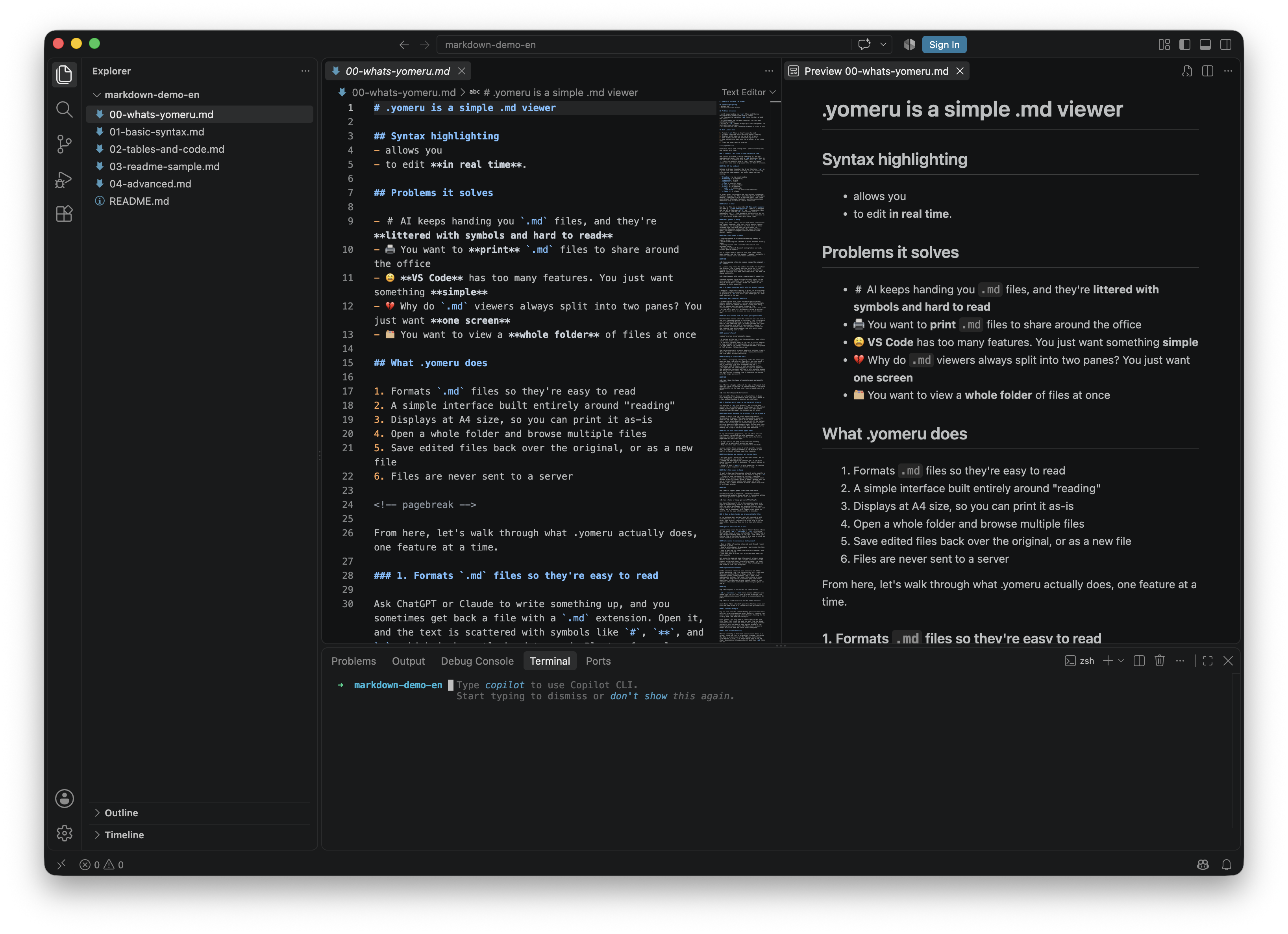
All of that exists because developers use it every day to write, run, and manage code — it’s their well-worn workbench. But if you just want to read a .md file someone handed you, none of that applies to you, and having your screen taken over by tools you’ll never touch is genuinely intimidating. You end up thinking “what does this button even do? Am I allowed to click it?” and get worn out before you’ve even opened the file you came for.
Reason #2: Getting a Readable View Takes an Extra Step, Every Time
VS Code does come with a built-in preview mode that renders a .md file properly, along with a side-by-side view that shows the raw text and the preview at once. On paper, that sounds plenty convenient.
The catch is that neither one turns on automatically. The moment you open a .md file, you land on the raw text editor — symbols like # and ** and all. To see the preview, you have to hit Cmd+Shift+V (or Ctrl+Shift+V on Windows); for side-by-side, there’s yet another shortcut, Cmd+K V — and you have to do it every single time.
If you were expecting “open the file, and it just reads like a document,” seeing a screen full of symbols first makes you think something’s broken. And having to manually switch views every time is one extra step you didn’t sign up for when all you wanted was to read.
Reason #3: The Default Text Is Small
The other thing that quietly wears you down is how small the text is. VS Code’s default font size runs noticeably smaller than the standard body text size on the web (Chrome’s default is 16px) — not a comfortable size for reading prose.
VS Code’s own GitHub repository has multiple issues filed along the lines of “Markdown text is too small by default.” It’s a fine size when the priority is packing in as much code as possible, but it’s cramped when you’re trying to read something as a document. That mismatch says something about VS Code itself: it’s optimized for writing, not reading.
Pick the Tool That Fits the Job
So there you have it — three sources of friction a non-developer runs into when opening a .md file in VS Code: a cluttered, developer-facing interface, a readable view that never appears until you ask for it, and default text that’s uncomfortably small.
VS Code itself is an excellent piece of software — for developers. But that’s precisely because it’s optimized as a tool for writing and managing code, and that makes it overkill for anyone who just wants to open a .md file and read it.
When you’re working with AI as a non-developer, the files that matter aren’t the code files — they’re the .md files. Between rulebooks like CLAUDE.md, AGENTS.md, and SKILL.md, and the steady stream of .md files AI hands you day to day, working through all that text is real effort.
Cutting that daily friction down by using a tool that actually fits the job is a perfectly good way to work smarter. You don’t have to force yourself into VS Code just because everyone recommends it. Find the tool that fits you.
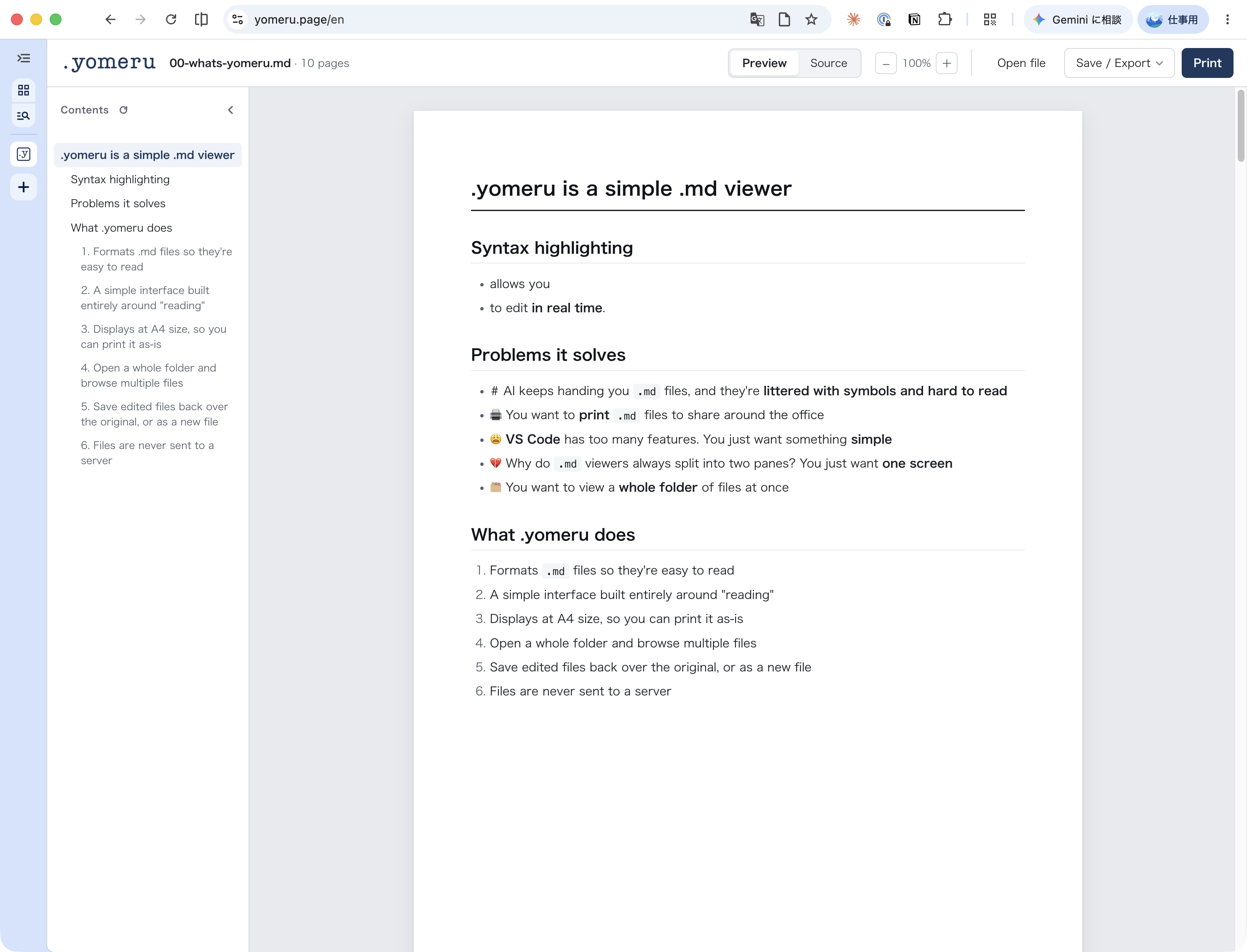
A simple, no-fuss .md viewer
Built entirely around reading and light editing — an .md viewer that doesn't assume you're a developer.
Try yomeru