You Can Now Open .md (Markdown) Files in Google Drive — So I Tested It
On October 5, 2026, Google announced that Google Drive and Google Docs can now handle .md (Markdown) files as they are.
With AI tools handing us .md files more and more often, plenty of people probably reacted with a “finally!”
So I put together sample .md files packed with all kinds of Markdown syntax and tried them out. Here’s what works, what doesn’t, and what to know before you rely on it.
This reflects what I saw on October 10, 2026. The feature is rolling out gradually over up to 15 days, so some accounts may not have it yet.
What changed
Double-click an .md (Markdown) file in Google Drive, and it now opens in Google Docs.
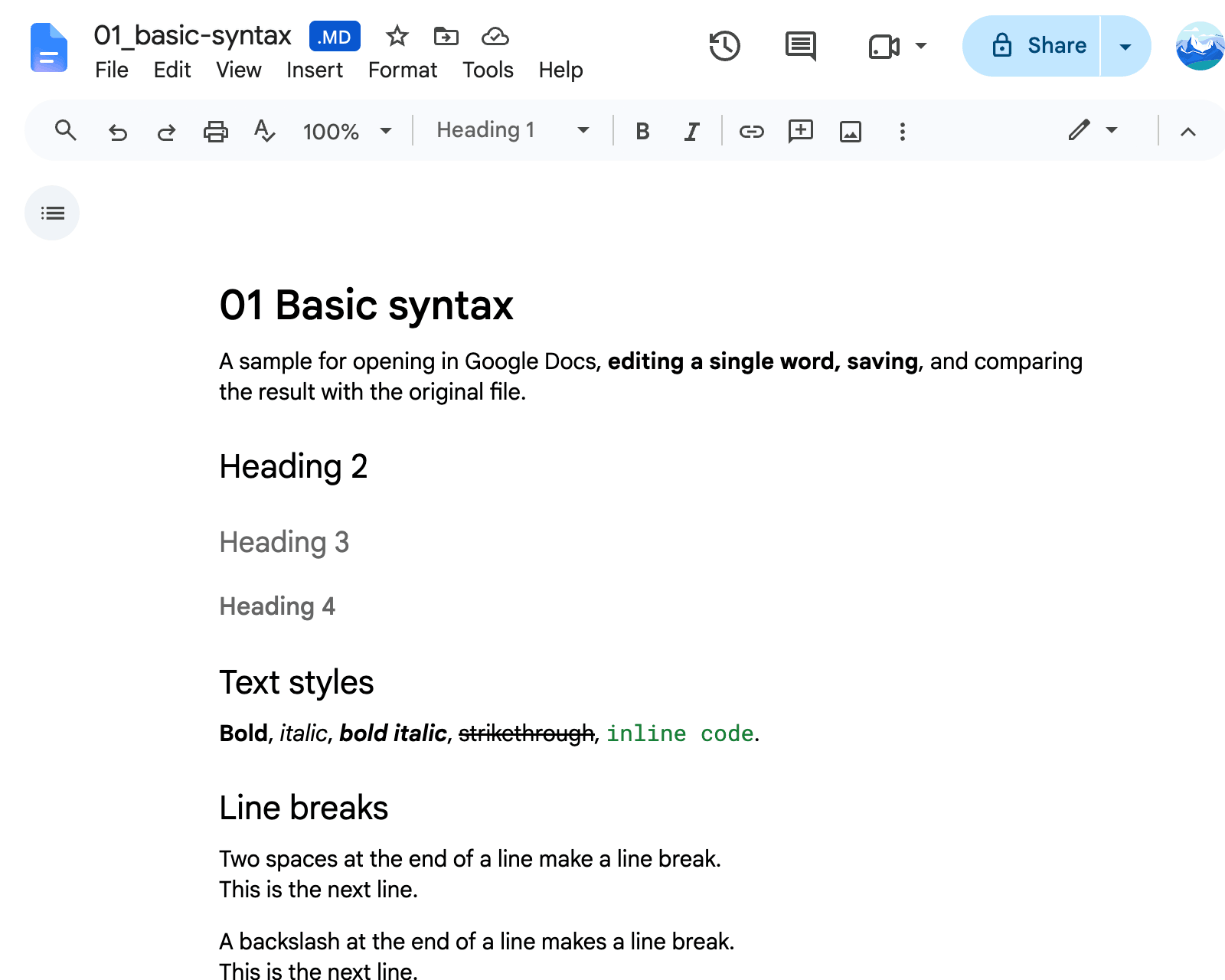
You could already “Open with Google Docs” before, but that converted the file into a Google Docs document, separate from the original .md file.
Now there’s no conversion. You can open, edit, comment, and collaborate, and the file stays an .md file.
- Double-click an
.mdfile in Google Drive to open it - Edit, comment, and collaborate
- The file is still an
.mdfile after saving - Works with personal Google accounts too; nothing to set up
For details, see Google’s announcement and help page.
One catch: “stays an .md file” is about the file format. The contents get rewritten in Google Docs’ own style every time you save. More on that below.
How well does it display?
An .md (Markdown) file opened in Google Docs displayed the basics cleanly:
- Headings, bold, italic, strikethrough
- Bulleted and numbered lists, checkboxes
- Blockquotes, links, code blocks
- Tables
- Footnotes and inline math (written like
$E = mc^2$)
Most .md files written by AI stick to these, so for reading, you’ll rarely run into trouble.
That said, a few things didn’t display well.
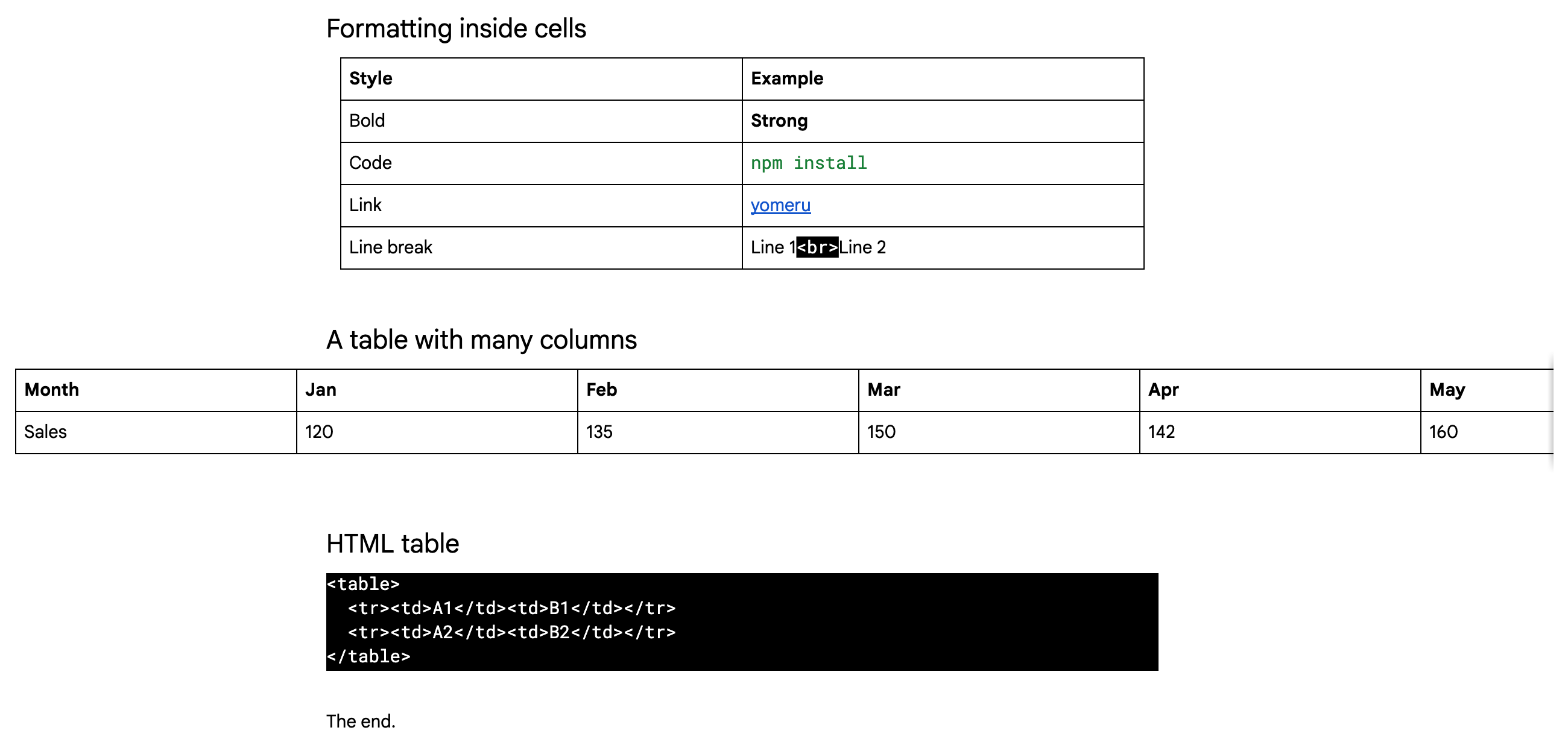
Line breaks inside table cells (<br>) show up as tags
To break a line inside a table cell, you use the HTML tag <br>, as in Line 1<br>Line 2. Google Docs shows the tag as raw text in a black box.
Tables with many columns spill past the text width
A wide table, such as monthly sales figures, ran off the right side of the text column.
Tables written in HTML show up as tags
You can also write a table in an .md file using HTML tags. Those tags, too, appear as raw text in a black box. The same goes for HTML tags in general, not just tables.
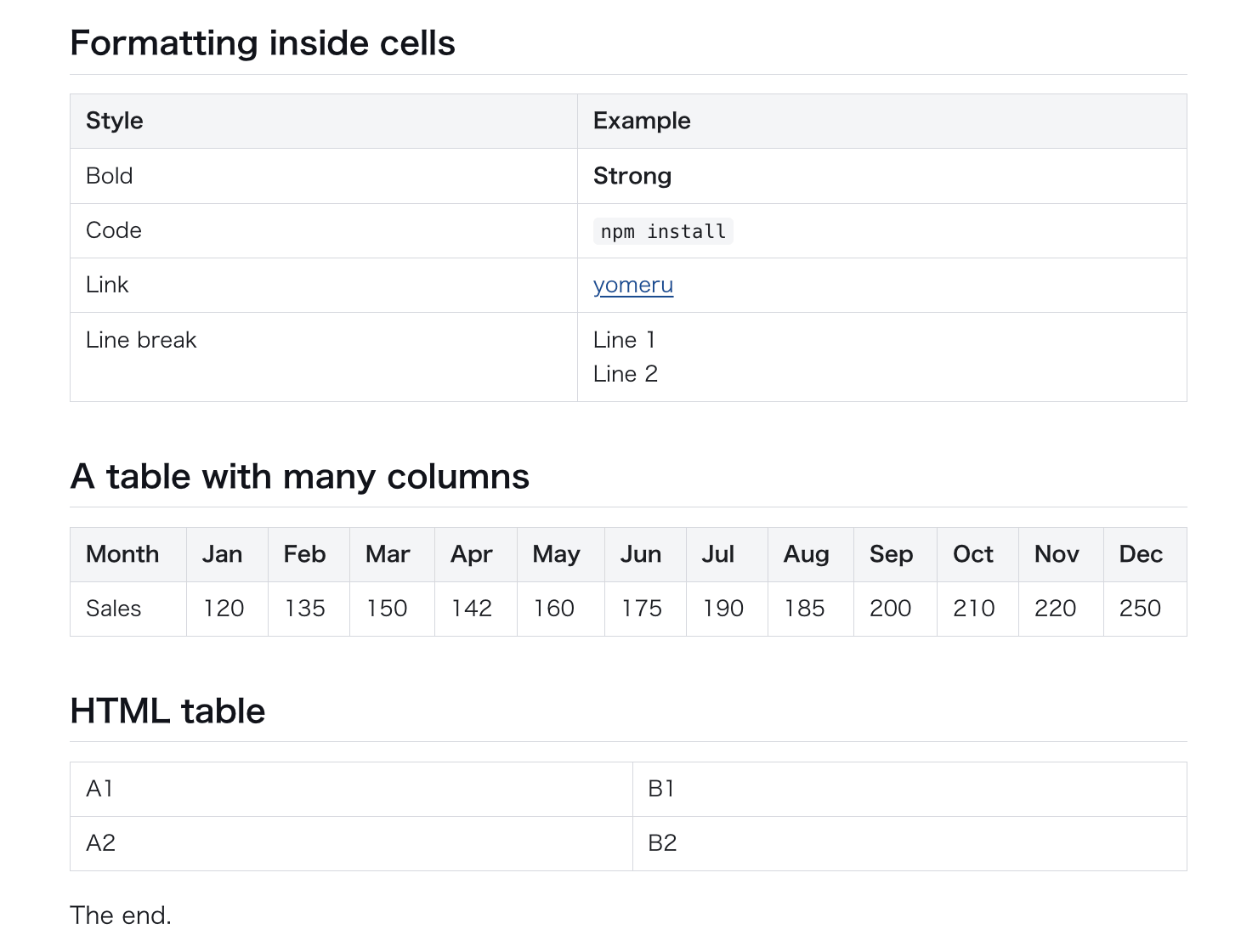
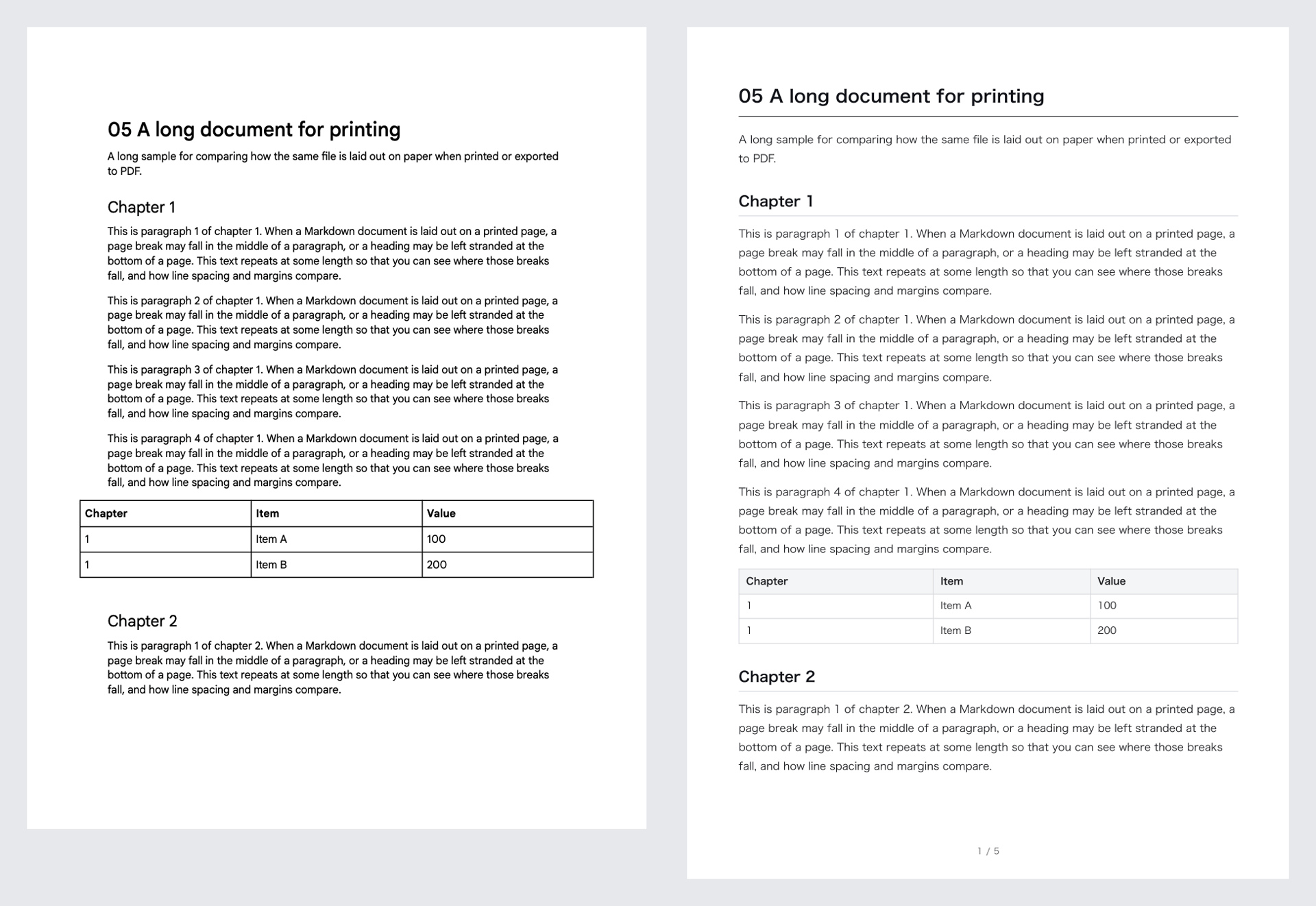
Here’s the same .md file in another viewer (yomeru):
Images from the same folder don’t show
In an .md file, the usual way to add an image is to point to a file in the same folder, like . Google Docs doesn’t display images written this way; you just get a blank space.
Images from the web (URLs starting with https://) do show.
Other things that appear as plain text
- Mermaid (a syntax for drawing diagrams from text)
- Math wrapped in
$$(inline math does display) - The settings block at the top of a file (the part between
---lines, called “front matter”). It shows up as a heading
Saving rewrites the file in Google Docs’ own style
This is the most important thing to know.
Just opening a file doesn’t change it. But as soon as you edit anything, Google Docs rewrites the whole file in its own style when it saves — including parts you didn’t touch.
Most of the rewrites, such as how table separator lines are written or a \ added before certain symbols, don’t change how the file looks in Google Docs. The following, however, do change the meaning.
Lines separated only by line breaks get merged
Lines separated by a single line break (with no blank line between them) are joined into one line when you save, with a space where each line break was.
Before saving:
Date: Wed, Oct 15, 2 p.m.
Place: Room 3, Head Office
Bring: Laptop
After saving:
Date: Wed, Oct 15, 2 p.m. Place: Room 3, Head Office Bring: LaptopText that was written on three lines gets merged into one when you save in Google Docs (each line break becomes a single space). To keep a line break in Google Docs, you need a “hard line break”: two spaces or a \ at the end of the line.
Front matter turns into a heading
The settings block at the top of a file, used by blogs and note-taking apps, turns into a heading when you save.
Before saving:
---
title: Extended syntax test
date: 2026-10-10
---
After saving:
## title: Extended syntax test date: 2026-10-10In the same way, Obsidian’s [[links]] and ==highlights== and GitHub’s alerts (> [!NOTE]) get a \ added before their symbols, so they stop working in those apps.
Images from the web get pulled into the file
Wherever an image from the web was displayed, saving converts the image itself into text and embeds it inside the .md file (a format called a data URL).
In my test, a file of about 3 KB grew to about 128 KB after taking in a single image.
You can carry the images around in a single .md file, but the file gets heavier, and opening it in a text editor shows a long wall of characters.
If something goes wrong, use version history
If a file gets rewritten in a way you didn’t want, you can go back with File > Version history in Google Docs.
When you edit an .md file you’ll keep using in other apps, make a copy first to be safe.
To add an image, use “Insert”
Images from the same folder don’t show, but images you add with Insert > Image in Google Docs do.
Like the web images above, these are embedded inside the .md (Markdown) file as data URLs. You don’t need to carry the image files separately, and they display offline, which is handy. Just keep in mind that the file gets heavier.
Printing and PDF
You can turn an .md (Markdown) file opened in Google Docs into a PDF with File > Download.
It works a little differently from a regular Google Doc, though:
- You can’t choose the paper size. The PDF always comes out on US Letter, and there’s no “Page setup” in the File menu to switch to A4 or another size, or to change the margins
- Tables spill into the left and right margins
- No page numbers
Also, Word (.docx) isn’t among the download formats.
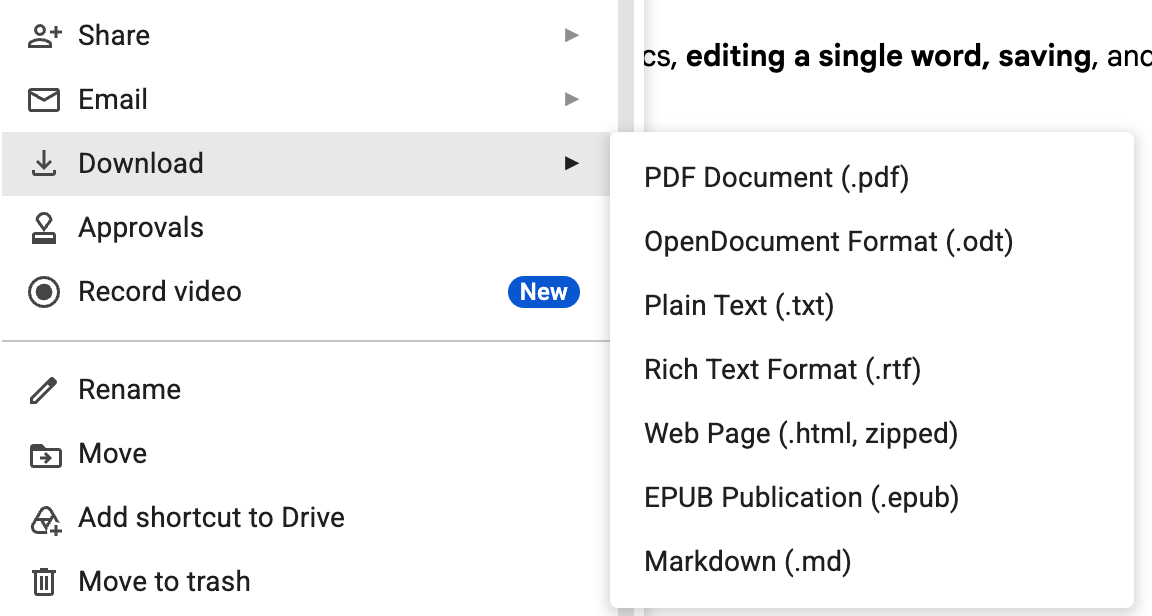
If you need a different paper size or a Word file, converting to a regular Google Doc with File > Save as Google Docs should give you the usual features back.
The mobile apps don’t support it yet
This update seems to cover Google Drive and Google Docs in a desktop browser. Google’s announcement and help page say nothing about the mobile apps.
Since the announcement, several people on X and Reddit have reported that the Google Drive app on iPhone can’t open .md (Markdown) files, or that on mobile they show up as plain text full of symbols.
For now, quickly checking a file on your phone while you’re out doesn’t seem to be an option.
Using it with AI
The ChatGPT and Claude apps can connect to Google Drive (through what’s called a connector). Combine that with Google Drive in your browser, and it seems you could have AI write an .md (Markdown) file and then fix it up yourself in Google Docs.
However, at least Claude’s connector (as of October 2026) can read .md files in Google Drive and create new ones, but it can’t change the contents of an existing file.
| What Claude’s connector can do | |
|---|---|
Read an .md file in Google Drive | ✓ |
Create a new .md file | ✓ |
Rewrite an existing .md file | ✗ |
So if you ask the AI to “fix the file from earlier,” it won’t update that file — it creates a new one. Even with the same name, it doesn’t overwrite; you get a separate file with “(1)” added. Comments and sharing settings you added in Google Docs don’t carry over to the new file.
That’s fine if the flow only goes one way — the AI writes, and you read and fix. But going back and forth with the AI on a single file takes a different approach. I’ll cover that in a separate post.
Summary
| What works | Open, edit, and comment while the file stays .md. Basic syntax displays cleanly |
| What doesn’t | HTML tags (line breaks in cells, HTML tables, etc.), wide tables, images from the same folder, Mermaid, $$ math |
| Watch out for | Saving rewrites the whole file in Google Docs’ own style. Affects line breaks, front matter, Obsidian syntax, and more |
| Printing / PDF | US Letter, no page setup. No Word download |
| Mobile apps | Not supported yet (reports that the iPhone app can’t open them) |
| Working with AI | Claude’s connector can only create new files, not rewrite existing ones |
Sharing an AI-written .md file with colleagues so they can read it and leave comments — for that, this is a really useful feature. And there’s no more conversion splitting your work into two files.
On the other hand, once you edit in Google Docs, the contents are rewritten in Google Docs’ own style.
Some people have said this update makes Google Drive usable as an Obsidian vault, but as covered above, be careful: Obsidian-specific syntax and front matter stop working.
Still, this feature has only just launched, and it will likely keep improving. Personally, I’m curious to see how it ends up working with Gemini!
That’s all for now.
A simple .md viewer
Open Markdown in a readable layout, then print or export to PDF.
Try yomeru