How to Print a Markdown (.md) File
Ask an AI assistant to draft something and hand it to a coworker, and sooner or later you’ll want a paper copy — for a meeting, for markup with a pen, or just because reading on paper is easier on the eyes. So you hit print on that .md file, and what comes out is a page full of # and ** instead of the clean document you were expecting.
Markdown viewers rarely handle printing well
Plenty of apps can render Markdown on screen — turning the symbols into headings, bold text, and bullet points. Printing is a different story. Send the rendered view to a printer and you often get the raw symbols anyway, or the page breaks land in the middle of a table.
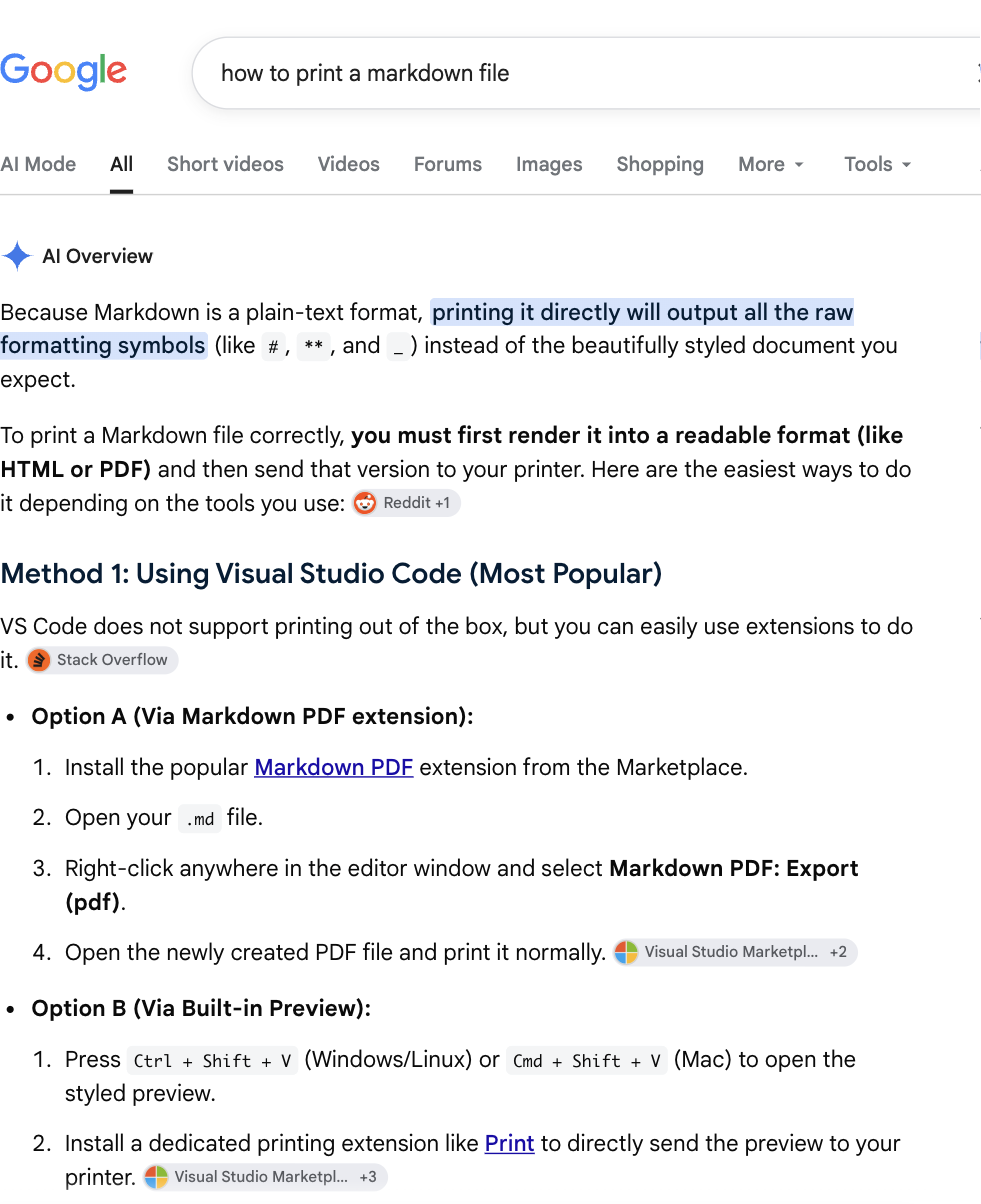
Ask an AI search engine “how to print a markdown file” today, and this is roughly what comes back:
Skip VS Code if you’re not already a developer
VS Code is the tool most often recommended for viewing .md files, and as the search result above shows, printing from it means installing an extension and running an export command first. For anyone who already lives in VS Code, that’s a two-minute job. For everyone else, it’s a lot of setup for a printout. (3 Reasons I Don’t Recommend VS Code for Opening Markdown (.md) Files)
Here are three ways to print a Markdown file without touching VS Code.
Option 1: Typora
Typora is a desktop app that shows Markdown as formatted text while you type, rather than as raw symbols. It feels close to a plain text editor — open a file, and it just reads like a document.
The trade-offs: you need to install it, and it’s free for 15 days before switching to paid, so whether it’s worth the cost depends on how often you’ll use it.
Option 2: Convert it to PDF online
Converting to PDF first is another straightforward option, and it skips the VS Code setup entirely. Tools like PDF Candy and CloudConvert turn an .md file into a PDF in the browser — no software to install, and a PDF is easy to share afterward.
These converters upload your
.mdfile to a third-party service. If the file contains anything confidential or personal, check the service’s terms and your own organization’s data policy before using one.
Option 3: Open it in yomeru
You just want to open the .md file AI handed you, and print it like any other document. That’s the one thing yomeru is built for.
Drag a .md file onto yomeru (or drop a whole folder) and headings, lists, and tables snap into place as A4 or US Letter pages, already paginated. Switch to the edit view to fix a typo or add a line, then hit print — what you see is what comes out.
No install, no account. The file is processed entirely in your browser and never touches yomeru’s servers.
Page breaks are visible on screen before you print, so you can see which heading or table lands on which page, and move a break by hand if you need to.
For a .md file you just want printed, it’s the fastest path from file to paper.
Picking a method
| If you… | Try | Upside | Watch out for |
|---|---|---|---|
| Already write and edit Markdown daily | VS Code | Great for editing; extensions cover almost any workflow | Printing needs an extra extension or a PDF export step |
| Want a desktop app that just displays it | Typora | Reads like a plain document, close to a text editor | Install required; free trial is 15 days |
| Don’t want to install anything, and just need a shareable PDF | PDF Candy / CloudConvert | Converts in the browser | Uploads to a third party; a PDF is harder to edit afterward |
| Just want to open and print the file you were given | yomeru | No install, no account, paginated A4 / Letter preview before you print | Not built for cover pages or fine layout tweaks |
.md is quickly becoming the default format AI hands you — it’s light, and it’s easy for both people and models to read and write. What it hasn’t caught up on yet is printing: it grew up in software and web writing, where paper was never the point.
You’ll likely see more of these files. Find the viewer that fits how you actually work with them.
Print that .md file, as-is
yomeru turns the .md file your AI wrote into an A4 or US Letter page the moment you drag it in. Print it, or export to PDF or Word.
Try yomeru