How to Open .md (Markdown) Files on Your Phone
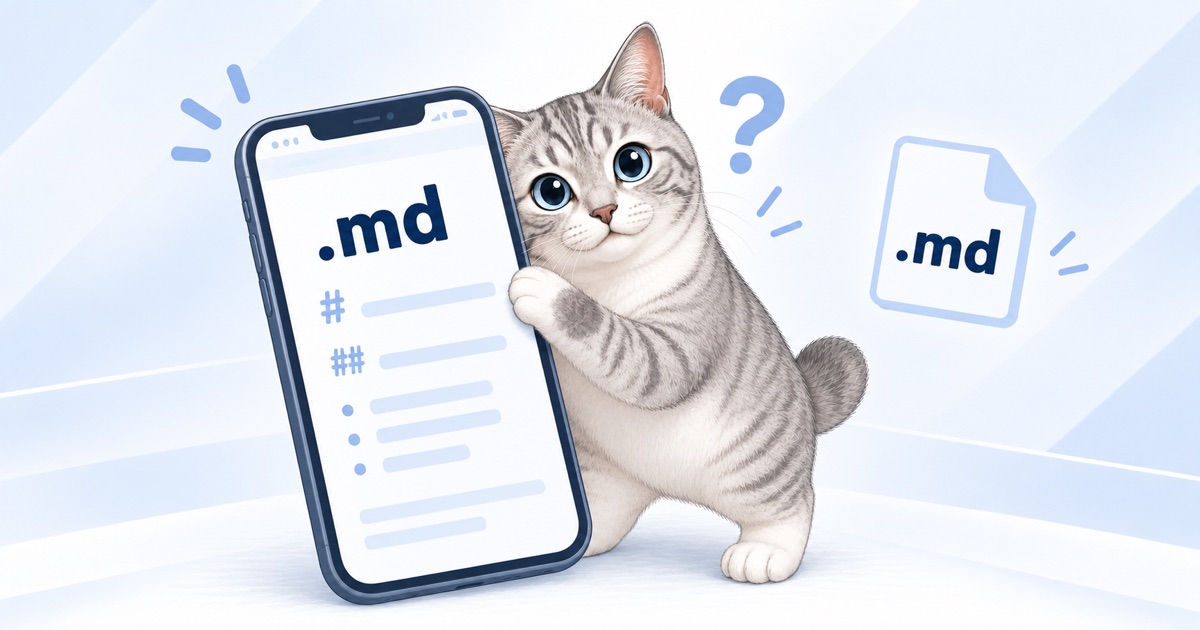
Work reports you had AI put together on your computer, meeting notes from a transcription tool, documents your team shares — if you keep them as .md (Markdown) files, have you ever wanted to pull them up on your phone while you’re on the go?
But unlike on a computer, it’s not obvious how to open them on a phone. They’re in a shared drive, so you tap one in the app, and it’s a mess of symbols that’s hard to read. Sound familiar?
In this post, I’ll share the best place to keep your .md files and the best way to open them on your phone, based on what I found testing on real devices.
Tested on iPhone (iOS 26.7.1) and Android (Android 16) as of October 2026.
What happens when you open a .md file on your phone?
Open a .md (Markdown) file from the app it’s stored in — Google Drive, iCloud Drive and so on — and most of the time, this is what you get.
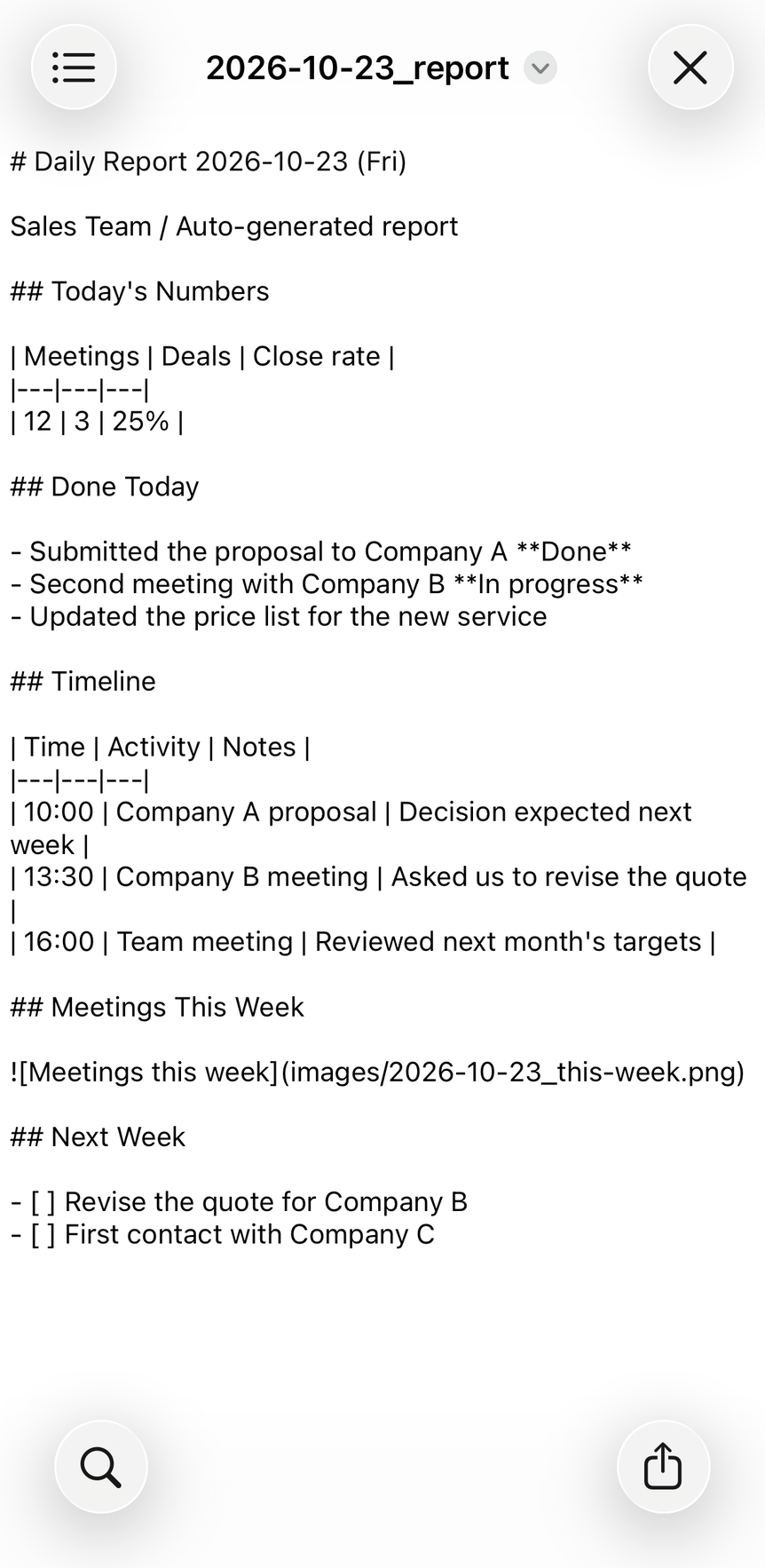
As you can see, the #, ** and table | characters are all just sitting there. It’s enough to make you wonder whether the file opened properly at all.
This doesn’t mean the .md file is broken. The symbols in the document are instructions: # says “make this a heading,” and ** says “make this bold.” The app doesn’t interpret those instructions — it just shows the characters as written (I explain more in Can’t Open an .md File? Here’s Why — and How to Open It Properly).
In other words, even on a phone, if you open it with something that understands Markdown, it becomes perfectly readable. But first, let’s think about the best place to keep your files.
By the way, in October 2026, Google Drive in a desktop browser started opening .md files in Google Docs (I tried it here). The mobile apps don’t seem to support this yet, though.
Watch where you keep your md files
“Who cares where I keep them?” you might think.
But each phone gets along better with some cloud services than others, so if you keep .md (Markdown) files somewhere and want to read them on different kinds of devices, you need to be careful.
This time, I tested whether .md files open in three major cloud services: Google Drive, iCloud Drive and Dropbox (all using their apps).
md files in the Google Drive app won’t open on iPhone
On iPhone, the Google Drive app can’t open .md files at all.
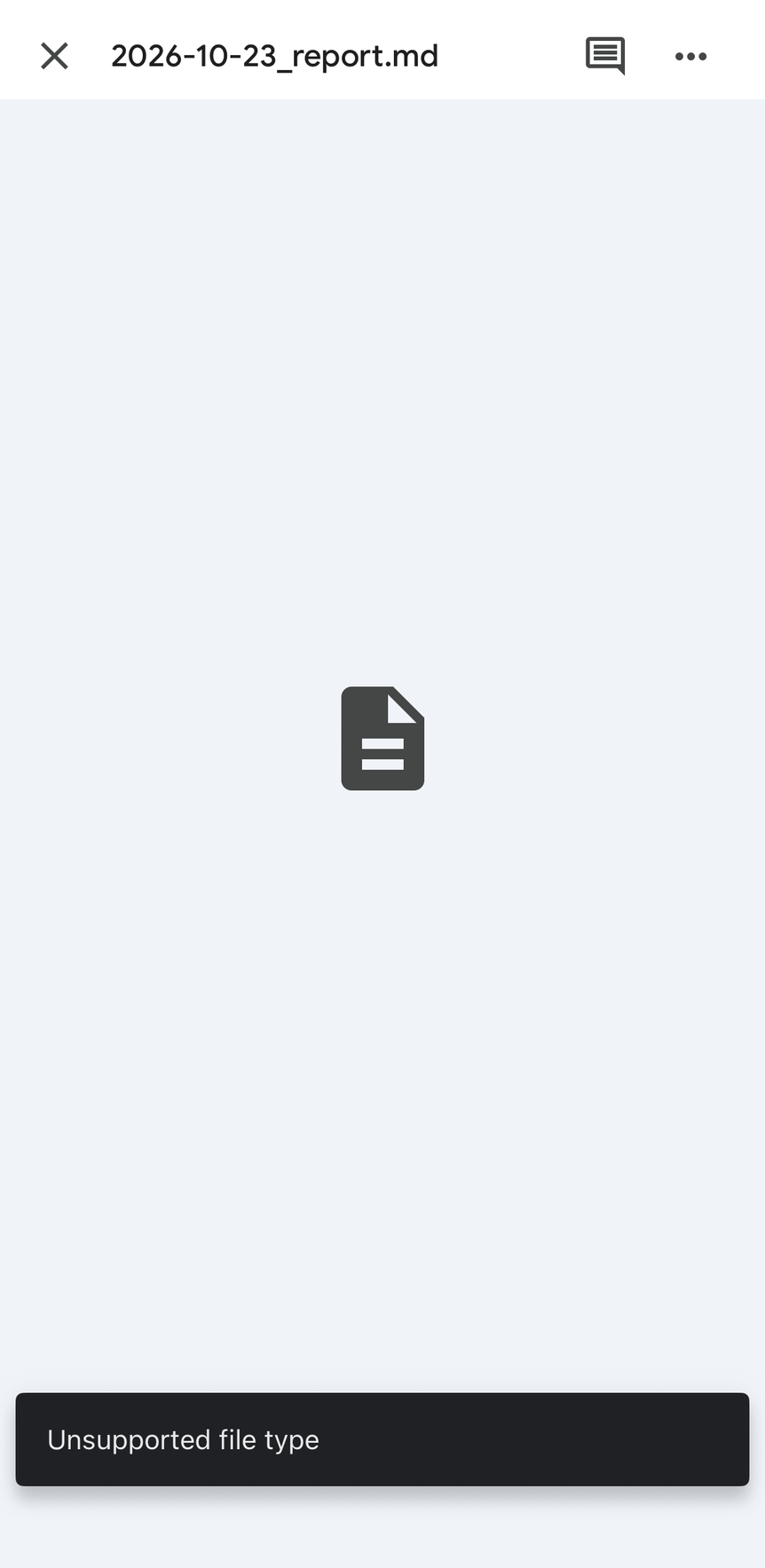
The Google Drive app on Android shows them as raw text full of symbols, like the screenshot above. But for some reason, on iPhone it can’t display them at all.
So I tried going through the iPhone’s built-in Files app instead — and the contents of Google Drive didn’t show up at all.
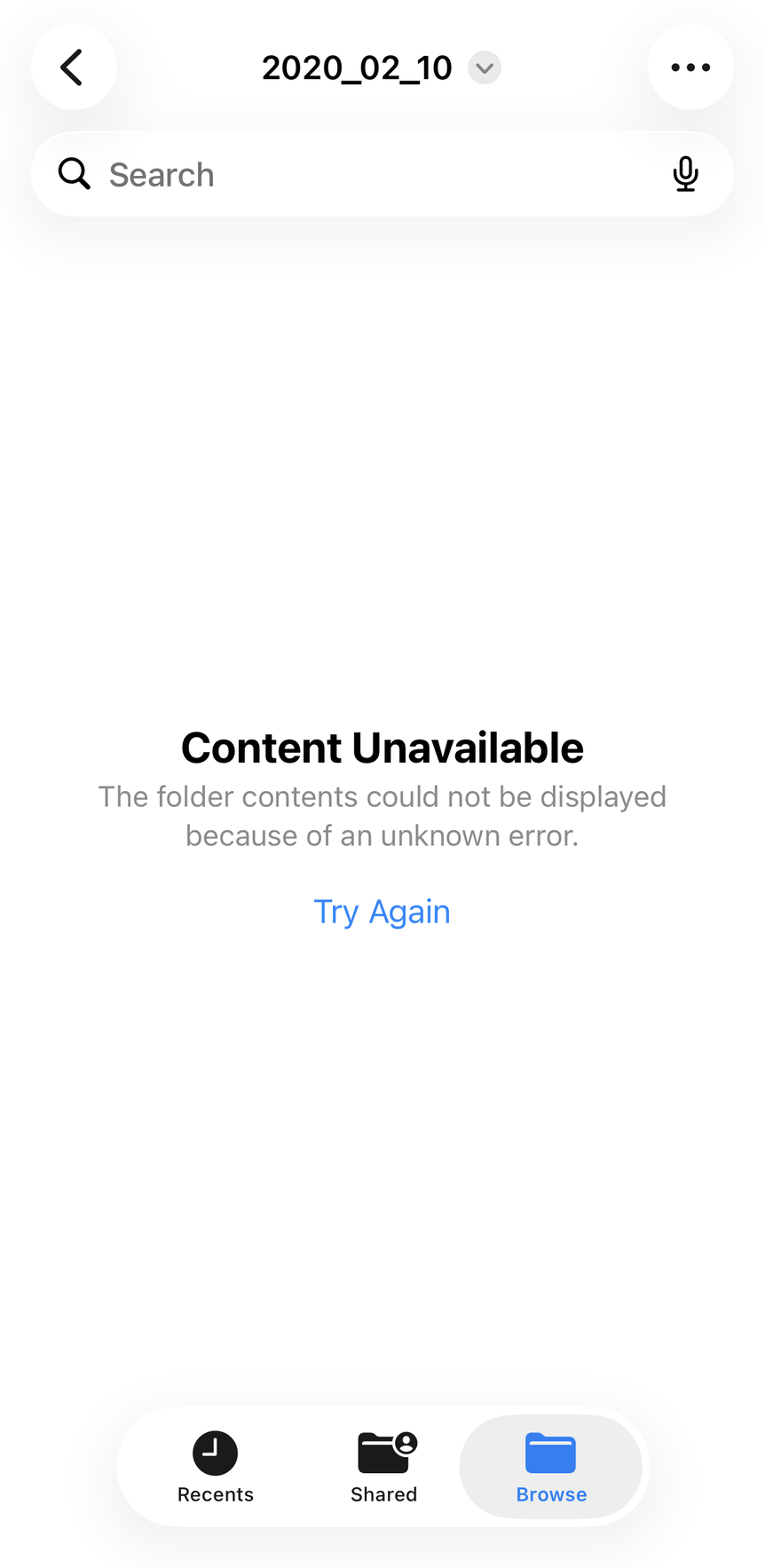
Plenty of teams build up reference documents and logs in a shared drive. If only the iPhone users can’t open the .md files, that’s a bit of a hassle.
iCloud opens them, but…
iCloud Drive, on the other hand, does open them on iPhone, as raw text.
But there’s no iCloud app for Android, so just as before, it’s inconvenient if you want to share across devices, or if you use a Mac with an Android phone.
Dropbox works everywhere
Finally, .md files in Dropbox opened on both iPhone and Android. Files I saved on my computer showed up on my phone anywhere from tens of seconds to about two minutes later, and syncing was no problem.
With iOS and Android each having their own limits, it’s nice that a third-party service works the same everywhere.
Here’s the summary.
| Device | iCloud Drive | Google Drive | Dropbox |
|---|---|---|---|
| iPhone | ◯ | ✕ | ◯ |
| Android | ✕ | ◯ | ◯ |
(All using the apps)
It’s a pitfall that surprisingly few people know about, so check the devices you use (your computer included) and pick the best place for your files.
Two ways to open them
Now you’ve decided where to keep your files. Let’s open a .md (Markdown) file on the phone…
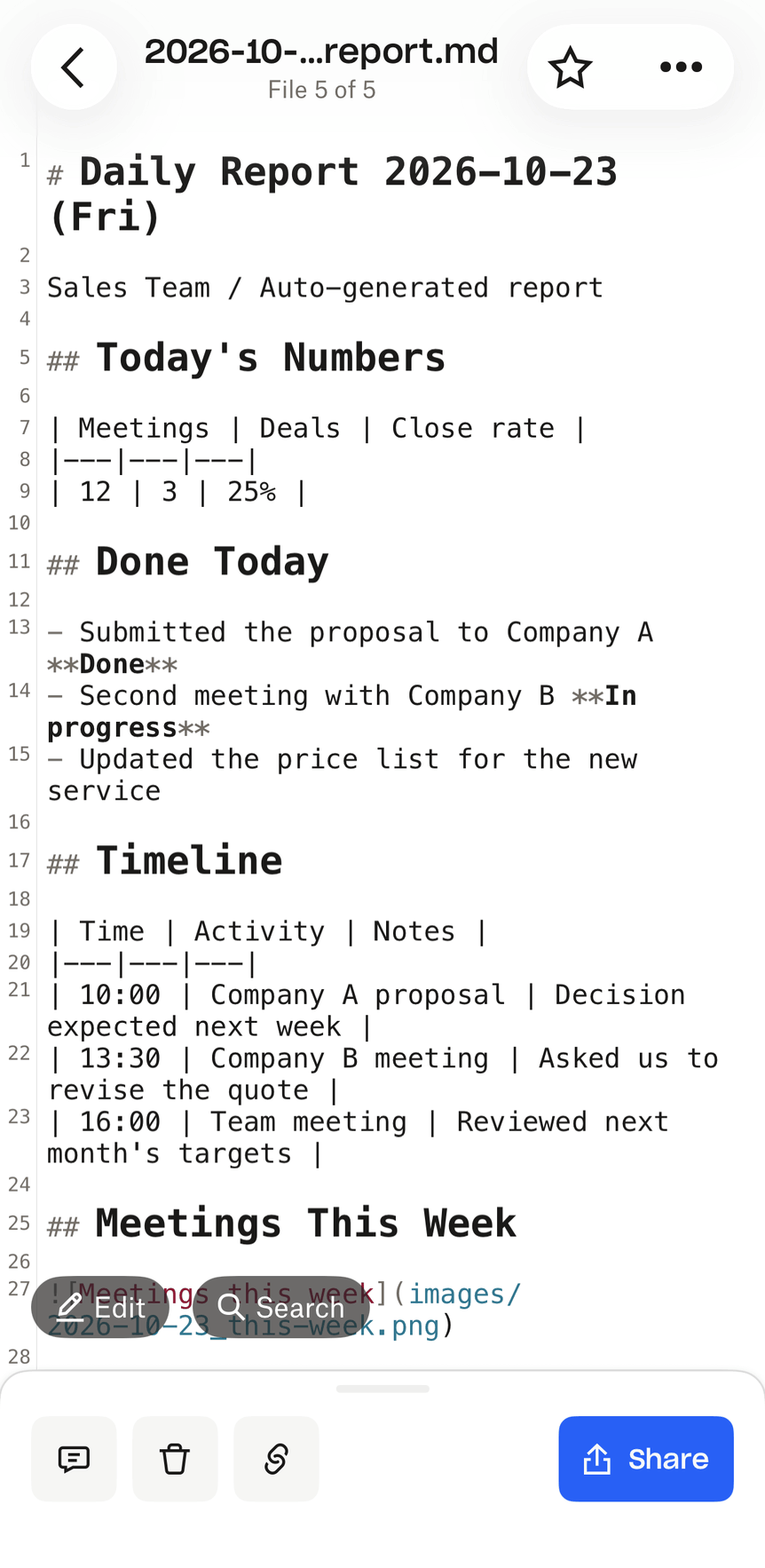
Right — the hard-to-read mess of symbols still hasn’t been solved.
As I mentioned, this is just because the .md file isn’t being opened the right way (the cloud apps don’t support Markdown preview). Open it properly, and a .md file can look this tidy.
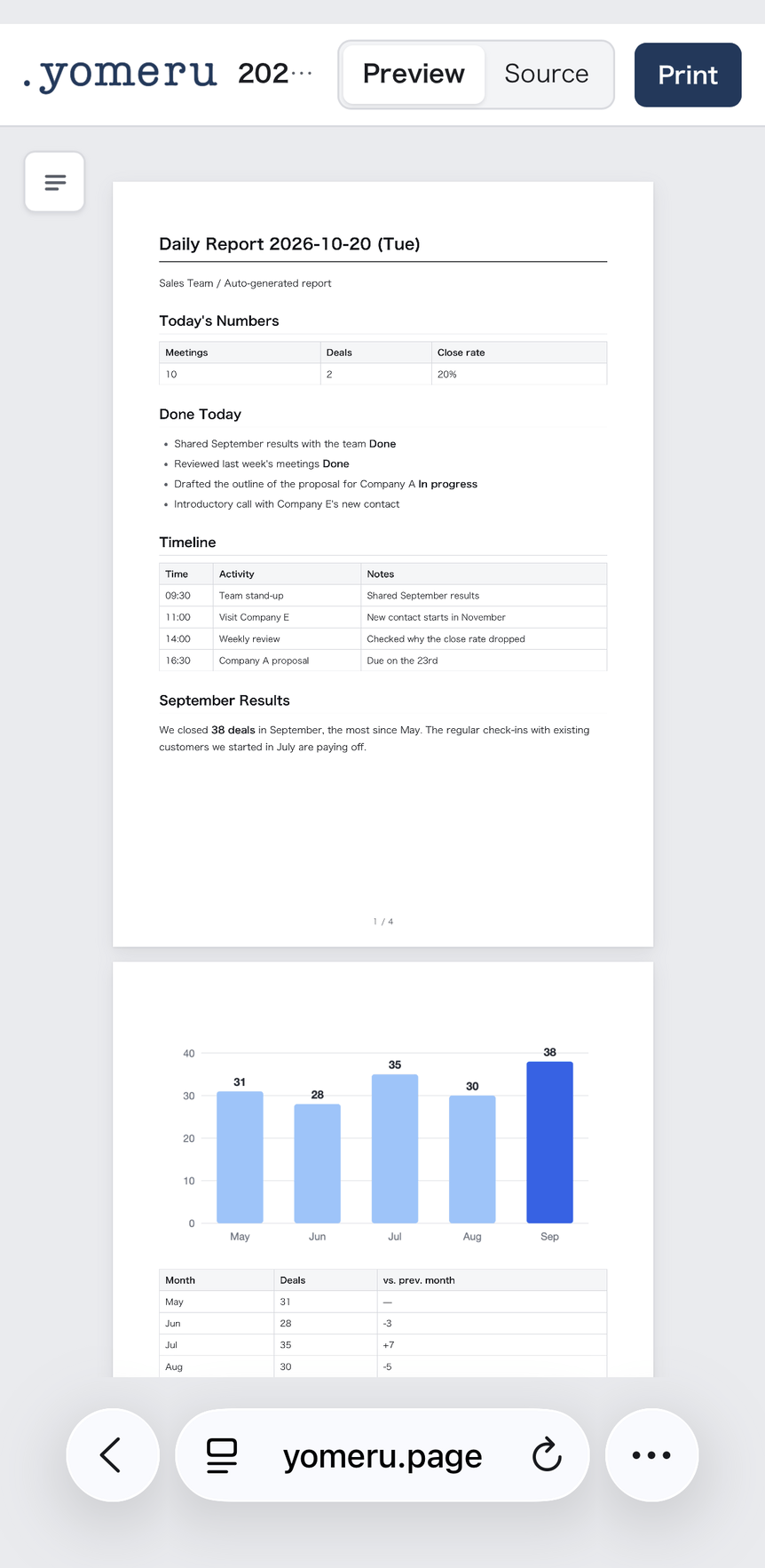
With the tables and images, it’s hard to believe it’s the same file.
There are two main ways to get a preview like this on your phone. Let’s go through them in order.
Install an app
The first is to install an app that previews the .md files in your cloud app. On a phone, solving it with an app feels like the smartest way. Here are some apps with good ratings in the stores.
iPhone
- # Type - Markdown Editor: Switching to the preview is easy, and it can open files from the cloud. Simple and easy to use. Free for 14 days
Android
- QuickEdit Text Editor: A standard text editor for phones. It seems to handle not just Markdown but all kinds of code. It might be a little hard to use if you’re not an engineer. Shows ads
Even a quick search turns up all kinds of apps, so try a few and find one that suits you.
Open them in a browser (no install needed)
The other way is to use a web tool that opens .md files in a browser such as Chrome or Safari. There’s nothing to install, so it’s easy to try.
Here, I’ll use yomeru, a tool I built, as an example.
- Open yomeru.page/en/ in a browser on your phone (Chrome, Safari, etc.)
- Tap “Open file” or “Open a folder” *
- Choose the
.mdfile (or folder) you want to read, from your cloud or from the device itself *
Without installing anything, you can open a .md file and see it neatly laid out, with no symbols.
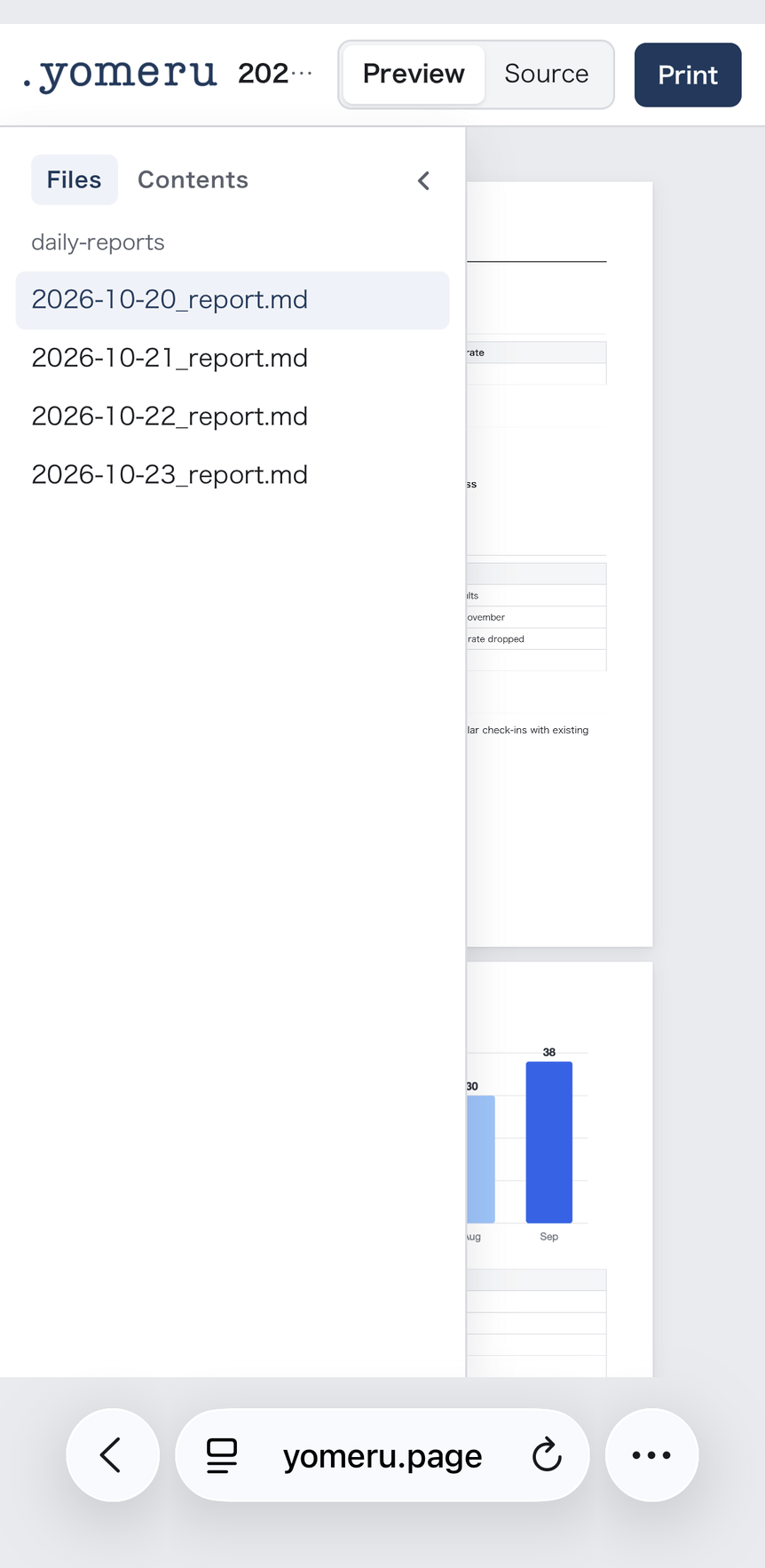
For things that pile up day by day, like daily reports, “Open a folder” * is handy. You can switch between dates from the list on the left, and images in the text show up too.
* “Open a folder” doesn’t support Google Drive on either iPhone or Android
* To open Google Drive files on iPhone, use Chrome
(Bonus) Use yomeru like an app
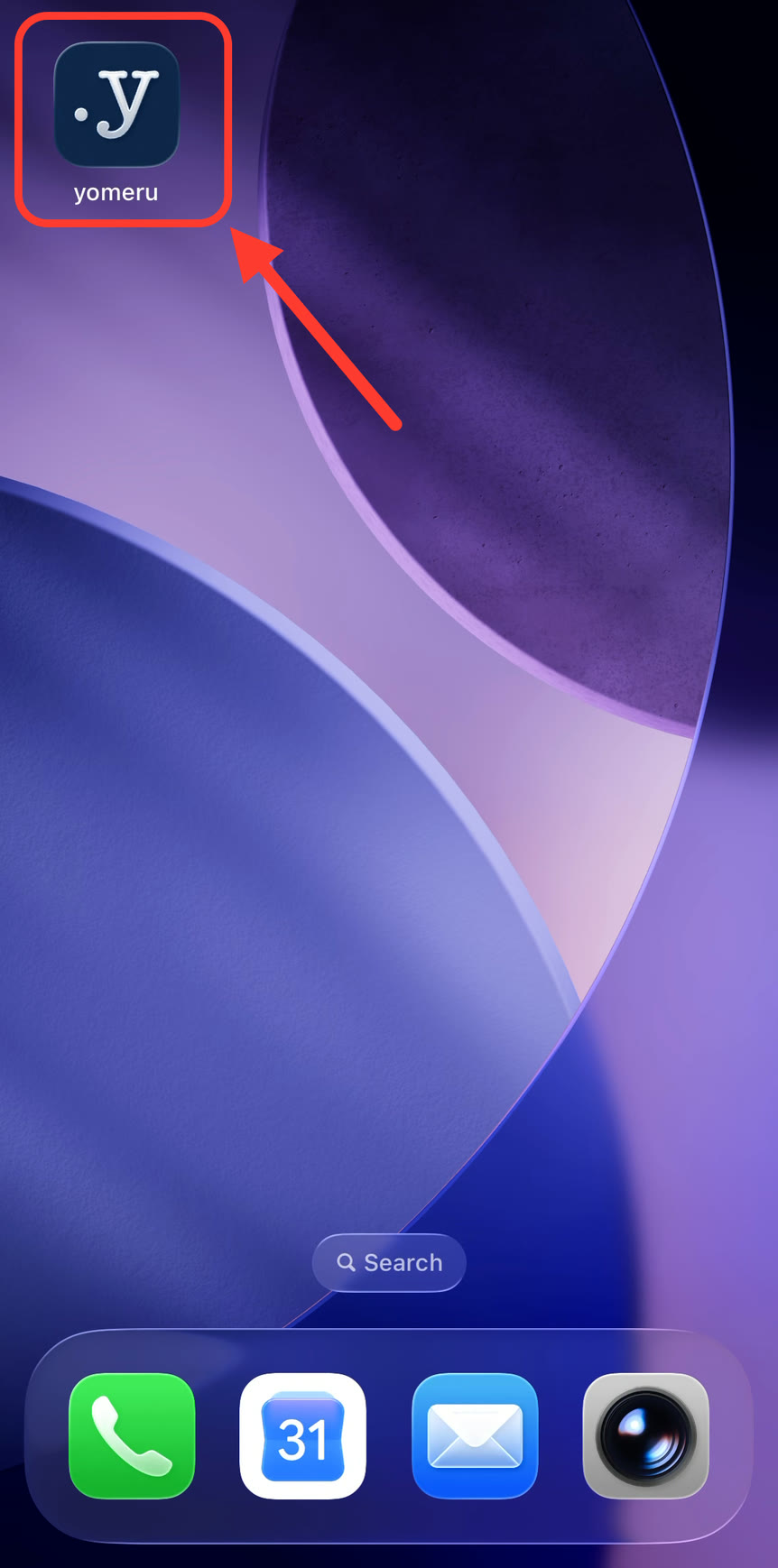
Use “Add to Home Screen” — from Safari on iPhone, or from Chrome on Android — and you can keep yomeru on your home screen like an app. You can open it right away whenever you need it, so I recommend it.
Would HTML be readable?
“If you’re having AI write something, HTML is better than md” — that’s been a popular idea lately. So I tried it to see how HTML looks on a phone.
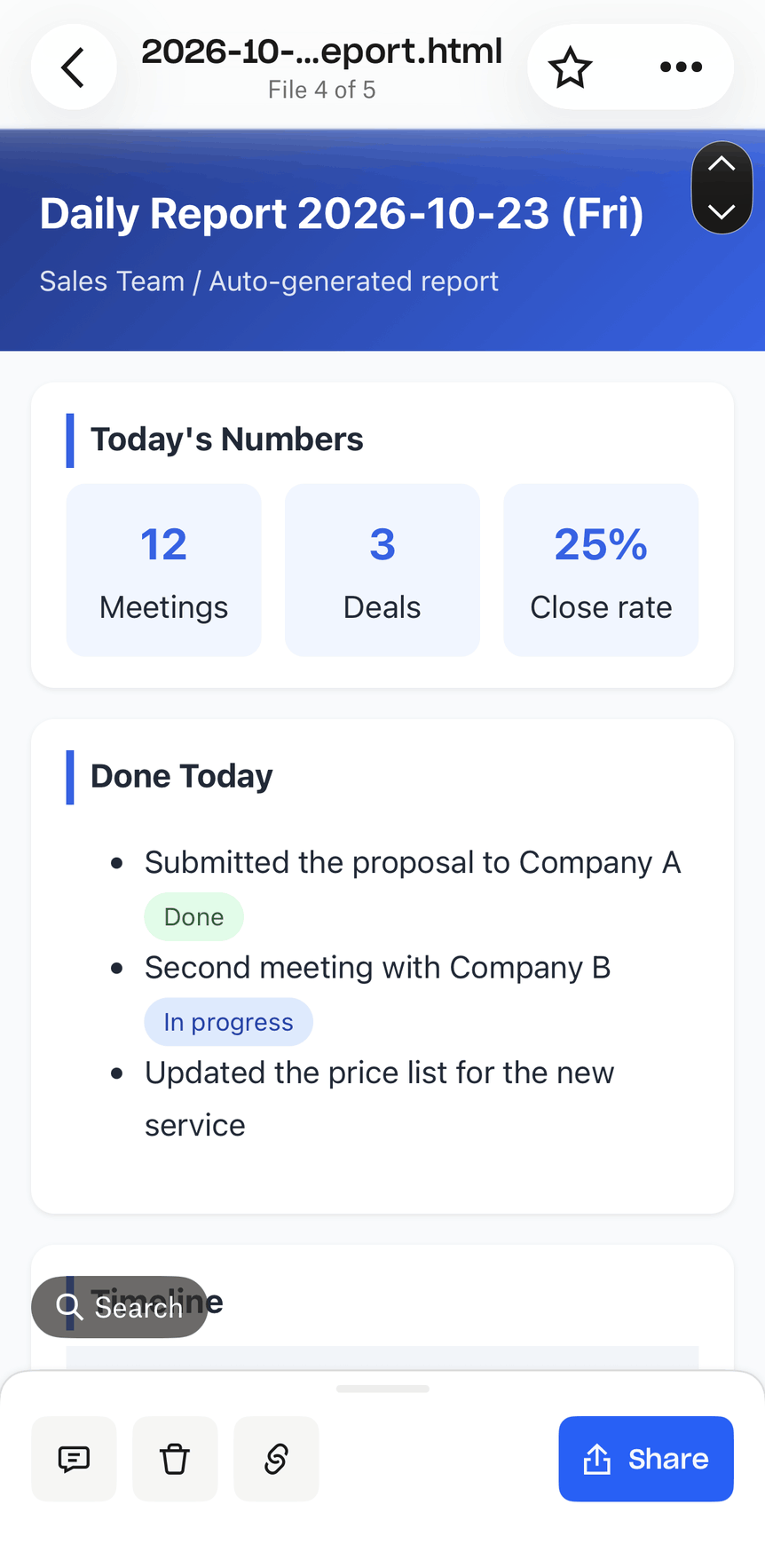
This is the same content as the .md (Markdown) file from earlier, made by asking AI to “output it as nicely styled HTML.” The colors and styling make it easy to read, don’t they? Splitting things into vertical layouts and the rich expressiveness that’s hard to get with .md files are what HTML (plus CSS) does well. HTML also opens in the Google Drive, iCloud Drive and Dropbox apps — it looks a little different in each, but it does display.
You might be thinking, “Well, this is all I need.”
But take a look at the source behind it.
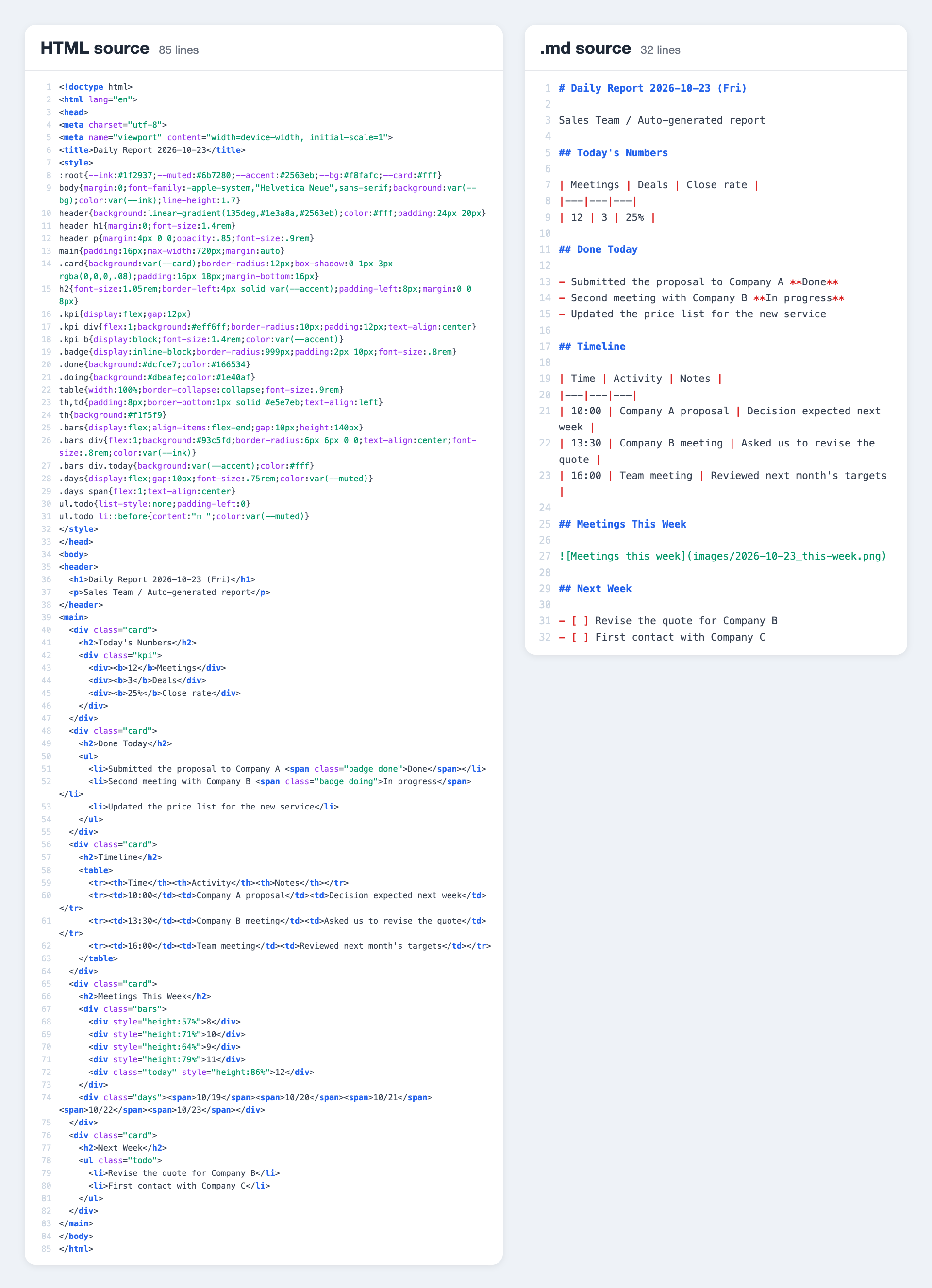
It’s the same text, but the HTML is full of code for controlling how it looks, and far more complicated than the .md file. If you wanted to tweak the content, it hardly looks like something you could do casually.
If you really only need to read it, on your phone or your computer, HTML is fine. But sometimes, after reading something, you’ll want to make a few changes. When that happens, fixing this HTML source is pretty hard if you don’t have the technical know-how. Accidentally delete part of a tag, and the whole structure can fall apart, leaving you stuck.
If you want to make quick edits too, I think keeping things as .md files is more convenient.
Summary
When reading .md (Markdown) files on your phone, there are two things that matter: where you keep them and how you open them.
| Key points | |
|---|---|
| Where to keep them | On iPhone: iCloud Drive or Dropbox On Android: Google Drive or Dropbox Across different kinds of devices: Dropbox |
| Way to open ①: Install an app | Lots of options, and usability varies (# Type - Markdown Editor, QuickEdit Text Editor, etc.) |
| Way to open ②: Open in a browser | A web tool (yomeru, etc.). Add it to your home screen to use it like an app |
| Having AI output HTML | Clean if you’re only reading. If you also want to edit, .md files are more convenient |
So, how was that?
To read .md files on your phone, you need two tools: “where to keep them” and “how to open them.” Each comes with its own limits, and it’s a little complicated. But once you set up the right ones for your environment and devices, you can open .md files easily, anytime.
Thanks to AI, .md files are no longer just for engineers, web writers and other professionals who pound away at a computer all day. If you set things up so you can reread the reports and meeting notes you made on your computer from your phone too, you can check them in a spare moment, which is really handy.
I hope this helps you figure out how to work with your .md files.
A .md viewer that works on your phone
Runs in your browser, on your phone or your computer.
Try yomeru